Common Exchange Online server issues and solutions During interviews for Exchange Online administrator or support roles, some common Exchange Online server issues and solutions that may be asked include: Email Delivery Issues: Problem: Emails are not being delivered or received. Possible Solutions: Check mail flow rules, connectors, and transport services. Troubleshoot using message tracking and protocol logging. Verify DNS records and ensure no IP blocking or blacklisting. Mailbox Access Issues: Problem: Users cannot access their mailboxes or experience intermittent access. Possible Solutions: Check mailbox permissions, user account status, and client configurations. Diagnose using the Remote Connectivity Analyzer tool. Reset mailbox credentials or reconnect the mailbox if necessary. Outlook Performance Issues: Problem: Slow performance or responsiveness in Outlook or other Exchange Online clients. Possible Solutions: Investigate large mailboxes, outdated Outlook versions, and network...
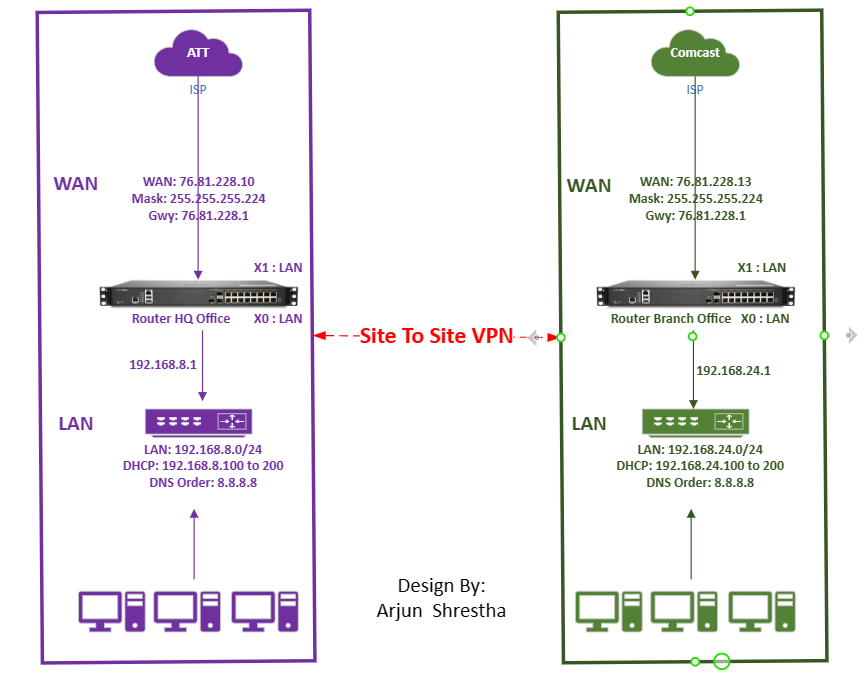
Site to Site VPN Configuration in SonicWall Router: Setting up a site-to-site VPN on a SonicWall router involves several steps. Keep in mind that the specific steps may vary based on the model and firmware version of your SonicWall router. Here's a general guide: We are going do site to site VPN in two group Group 8 and Group 24 ( left side is Group 8 and Right side is Group 24 ) See in the below diagram. Access the SonicWall Management Interface: Open a web browser and enter the IP address of your SonicWall router. Log in with your administrator credentials. Navigate to VPN Settings: Locate the VPN settings in the management interface. This is typically found in the "VPN" section. Click on Manage Click on VPN ( under connectivity ) > Click on Basic settings Now click on Add button Group 8 SonicWall Router configuration: Configure General tab : Provide Security Policy : Policy Type: Authentication Method Name: IPsec Primary Gateway Name or I...
In which situation we need to reset the Outlook and what are the benefits of resetting the Outlook? You may need to reset Outlook in situations where the application is experiencing issues such as crashes, freezes, or unexpected behavior . The benefits of resetting Outlook include: resolving navigation pane problems, troubleshooting add-in conflicts, fixing startup issues, restoring default settings to resolve configuration-related problems. To reset Outlook, you can follow these steps: Close Outlook : Ensure that Outlook is completely closed before proceeding. Open Run Dialog: Press Win + R on your keyboard to open the Run dialog box. Run Outlook Reset Command: In the Run dialog box, type outlook.exe /resetnavpane and press Enter. This command resets the navigation pane in Outlook. Confirm Reset: When you open Outlook again, it should start with a reset navigation pane. You may need to reconfigure any customizations you had in the navigation pane. Thi...

Comments